Search
Written By Manos Mastorakis
Last updated 29 days ago
You can search for any object or text in Routine by clicking the magnifying glass icon in the menu or using the CMD/CTRL+P keyboard shortcut.
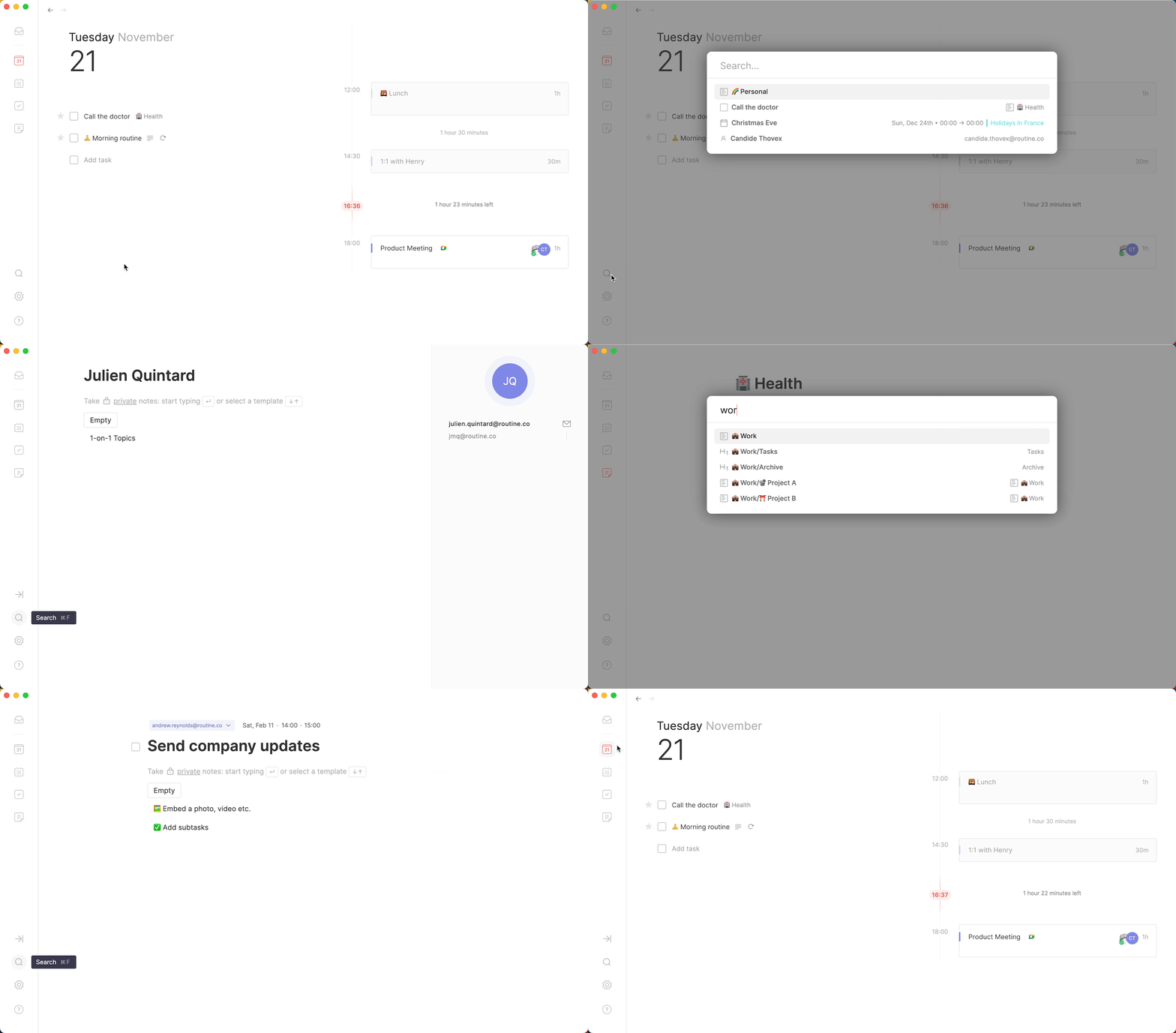
✍️ What you can search
Search covers everything in your workspace:
Tasks (personal and team)
Events and meetings
Pages and documents
Contacts
Projects
Custom objects and database entries
Text content within notes and pages
Search is global — it looks across your entire workspace, including all organizations and workspaces you have access to.
🎙️ How to use Search
Press
CMD/CTRL+Por click the magnifying glass icon in the sidebarStart typing — results appear instantly as you type
Use
↑and↓to navigate resultsPress
ENTERto open the selected objectPress
ESCAPEto close search without navigating
💡 Search is case-insensitive and normalizes accented characters, so searching "foo" will match "fôo".
🔍 In-screen search
In addition to global search, Routine supports searching within the current screen:
Press
CMD/CTRL+Ffrom any screen to search within the content currently visibleOn database screens,
CMD/CTRL+Ffocuses the database's own search field directlyThis is different from global search (
CMD/CTRL+P) — it searches what's on screen, not your entire workspaceUse it to find a specific row in a large database view, or locate text within a long page
⁉️ Tips for better search
Search by title or content — Routine searches both object titles and the text inside notes and pages
Be specific — the more characters you type, the more precise the results
Use it for navigation — search is the fastest way to jump to any screen, object, or page without clicking through the menu
Recent objects — search surfaces recently visited objects at the top even before you start typing
🤖 AI as an alternative
For more conversational or context-aware retrieval, the AI assistant can help surface objects naturally:
"Show me all tasks related to the Acme project"
"Find my notes from last Thursday's meeting"
"What do I have scheduled for next week?"
This is especially useful when you don't remember the exact name of what you're looking for.
Was this helpful?
Still need help? Ask the team