Note Editor
Written By Manos Mastorakis
Last updated 29 days ago
In Routine, objects can have one or more Notes properties. Notes are ideal for enriching tasks, events, contacts, projects, and pages with unstructured, rich content — from simple text to embedded media, references, and interactive checklists.
A note is composed of a series of blocks, each representing a different type of content.

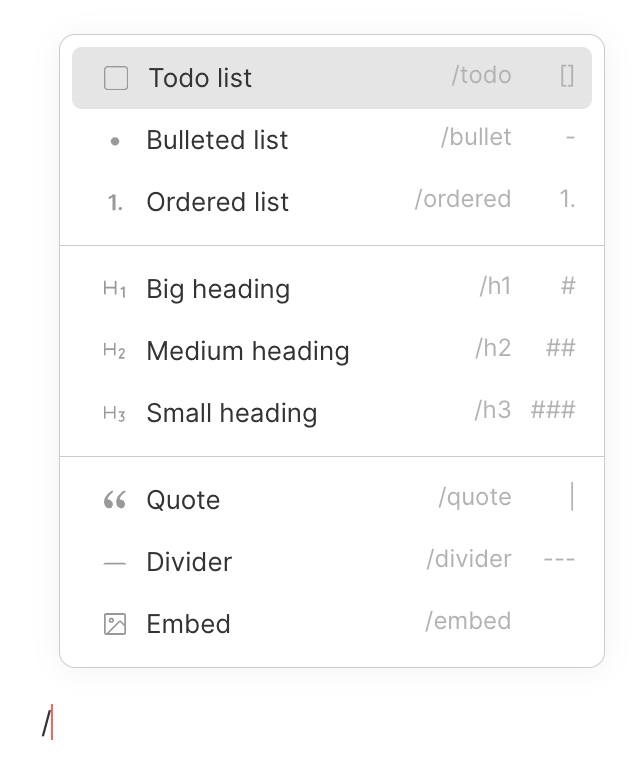
👨💻 / Command
Hitting / at the beginning of any line opens a menu listing all available block types. Use it to discover what's possible and insert whatever content you need.
Date stamps are not available inside the title of a todo or recurring todo block
@ Menu
Hitting @ opens a unified menu for linking and referencing:
Mentions — mention a teammate to notify them
References — link to any object in your workspace (task, page, project, event, contact)
Integrations — reference connected integration data inline
Stamps — add date, time, or other contextual stamps
Organizations, agents, automations, and conversations — reference these directly inline. Pasted links to these objects can also be turned into inline references
Scrolling to the bottom of the
@menu loads more results — all items are reachable even in large workspaces
+ Button
Every block has a + button on its handle. Click it to quickly add a new block directly above or below the current one without using the / command.
🧱 Blocks
Creating blocks
Below are the supported block types along with their / command and markdown shortcuts:
Text — default block type for plain and formatted text
Bullet list — type
*or-followed bySPACEOrdered list — type
1.,2., etc. followed bySPACEChecklist — type
()followed bySPACEto create interactive checkboxesHeading 1 — type
#followed bySPACEHeading 2 — type
##followed bySPACEHeading 3 — type
###followed bySPACEQuote — type
|followed bySPACEDivider — type
---Code block — use
/codeor type```to insert a code blockCallout — use
/calloutto add a highlighted callout blockEmbed — paste a URL and choose to embed it (supports YouTube, Vimeo, and more)
Image — use
/imageor drop an image file directly into the editorTable of contents — use
/tocto insert a floating, auto-generated table of contents
⚡ Shortcuts are especially powerful for creating blocks quickly. We recommend learning them to stay in flow.
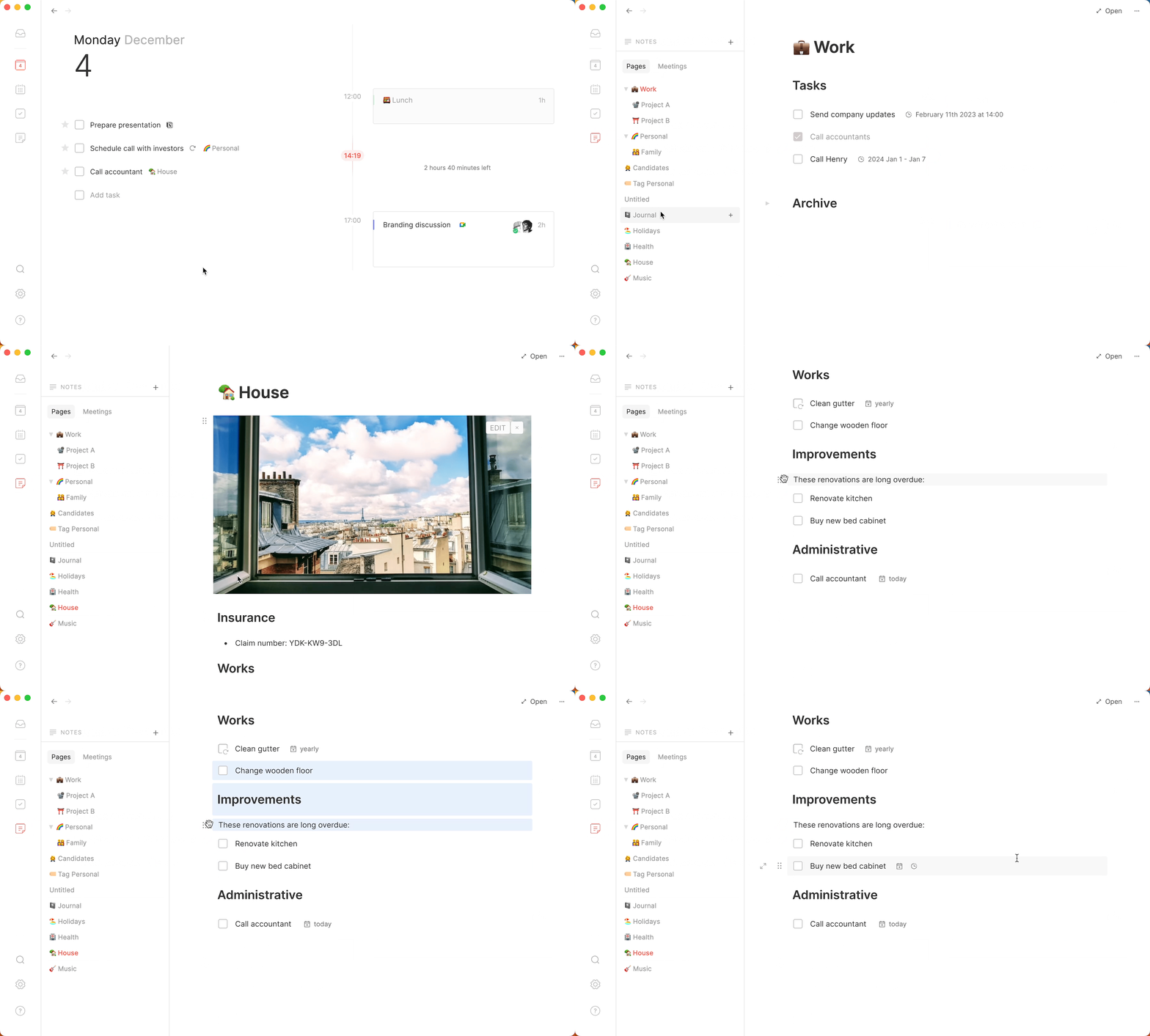
Selecting blocks
Click the
⋮⋮handle to select a single blockUse
SHIFT+↑orSHIFT+↓to extend the selection to multiple blocksDraw a rectangular area over blocks to quickly select multiple blocks at once
Use
CMD/CTRL+Ato select all text in the current block; press again to select all blocksMOD+Don a selected todo or object block — duplicates the block inline
Moving blocks
Drag and drop the ⋮⋮ handle on the left side of any block to reposition it. Multi-block selections can also be dragged together.
Copy, cut & paste blocks
Copy — select one or more blocks and use
CMD/CTRL+CCut — select one or more blocks and use
CMD/CTRL+XPaste — use
CMD/CTRL+Vto paste within Routine or into another applicationPaste URL — pasting a URL offers options: embed it, turn it into a reference, or keep it as a plain link
Deleting blocks
Select one or more blocks, then press BACKSPACE or DELETE.
🎓 Headings
Creating headings
Use the / menu or the #, ##, ### markdown shortcuts to create H1, H2, and H3 headings.
Collapsing sections
Every heading creates a collapsible section. Click the arrow to the left of the heading to hide or show all content beneath it. This is useful for long notes with multiple sections.
🎨 Formatting
Routine supports standard Markdown formatting. Select text and use the formatting menu, or use the shortcuts below:
Bold —
**text**orCMD/CTRL+BItalic —
*text*orCMD/CTRL+IUnderline —
_text_orCMD/CTRL+UStrikethrough —
~~text~~orCMD/CTRL+SHIFT+SInline code —
textorCMD/CTRL+SHIFT+CLinks —
[text](url)or paste a URL on selected text to turn it into a linkSecret — use
/secretto format hidden or sensitive text
If you prefer not to use Markdown, select any text to open the formatting toolbar and apply styles visually.
🔗 Links
Routine automatically detects URLs in text and converts them into clickable links — no formatting needed.
To open a link, hold CMD/CTRL and click it.
To create a link manually:
Use Markdown:
[link text](https://url.com)Or paste a URL onto selected text to turn the selection into a link
Pasting a URL anywhere in the editor opens a menu letting you choose to:
Keep it as a plain link
Embed it as rich media
Turn it into a reference to an object
🧾 References
References let you link to any object in your Routine workspace directly from the note editor.
Use @ and search for any task, page, project, event, or contact to insert a reference inline. References display the object's current title and open the object when clicked.
References can also be turned into embedded blocks showing a preview of the linked object.
Was this helpful?
Still need help? Ask the team